1Get a VM
One command. It signs you in, registers your SSH key, asks for a name and a region (the closest one is preselected), then drops you straight into your new VM.
🥐 Jean-Claude is doing the splits across a fresh VM...
✔ hello-jc is up. The splits are holding. (1 vCPU / 2 GB · cdg)
→ Door is open. SSHing you in...
jc@hello-jc:~$
Everything is already installed: Claude Code, codex, opencode, Node 24, Python, git, gh, tmux, the lot. The disk is persistent, so your repos and dotfiles survive restarts and resizes.
jclaude ssh brings you back. Interactive connections live inside tmux, so whatever you left running is still there, mid-rep.2Connect Claude
Inside the VM, start claude and type /login. It prints a URL: open it on your own machine, approve, paste the code back. One time only.
> /login
→ Open https://claude.ai/oauth/authorize?... and paste the code here
✔ Logged in. Enchanté.
Your VM now uses your claude.ai account, which means the integrations you have connected there (Slack, Google Drive, GitHub, the whole entourage) are available to sessions running on this VM too. Nothing to re-wire.
And that is the entire setup. The first-run questions (theme, workspace trust, the "Enable Remote Control?" prompt) were answered at the factory. The moment login completes, a supervised Remote Control server in the background connects your VM to claude.ai, and keeps it connected 24/7. You can quit claude right away; the background server does the holding.
3It appears in the Claude apps
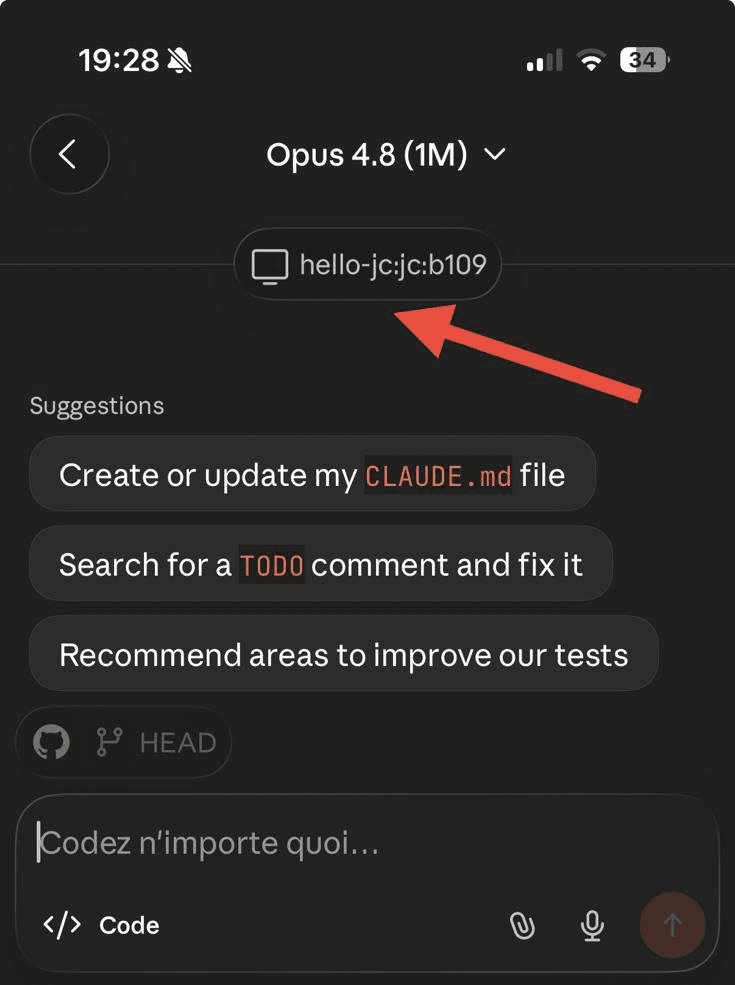
Open claude.ai/code in a browser, or the Code tab in the Claude mobile app. Your VM is there under Remote Control, labeled hello-jc, ready to start sessions.
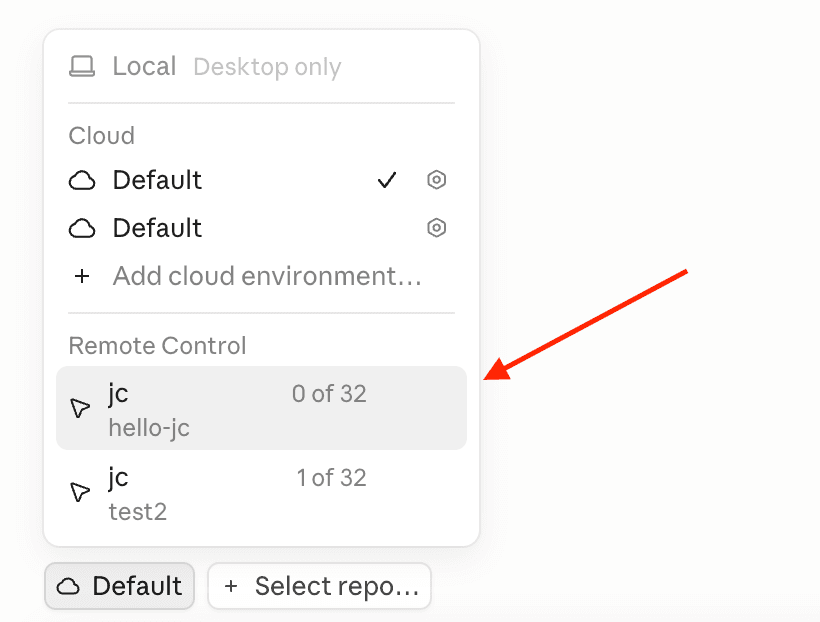
Sessions you start here run on the VM, not on your laptop. Kick off a refactor from the desktop, close the lid, then check on it from your phone in the elevator. Same session, same context, still working.
4Sessions that spawn sessions
Any session on the VM can launch more sessions. Ask in plain language:
"Start a new remote control session in ~/my-app with auto permissions"
The VM ships with a built-in skill that knows the moves, and this road gives you more flexibility than the environment picker: choose the working directory (each directory shows up as its own environment on claude.ai), set the permission mode, or resume an older session by id. For the curious, this is roughly what it runs under the hood:
'claude --rc "my-app" --permission-mode auto'
// the new session reports its claude.ai URL back to you
Each spawned session hands back a claude.ai/code/session_... URL. Open it on any device and take over.
5Remote-control your own sessions
The reverse move also works. SSH in, run claude in any directory, work as usual. When you want that exact session in your pocket, type /remote-control inside it:
✔ /remote-control is active · https://claude.ai/code/session_01XYZ...
Now, how to walk away without knocking it out. Important: Claude Code has no detach of its own. Quitting it (Ctrl+C or /exit) stops the process, and remote control goes down with it. The detach move lives one layer up, in tmux. Two graceful exits:
- ✓Detach the tmux around it.
jclaude sshsessions live inside tmux: pressCtrl+BthenD(or simply close the terminal). Claude keeps running inside the detached tmux, remote control stays up; reattach later withjclaude ssh. - ✓Or just leave it. Keep the terminal open and walk away; the session stays live and reachable from the apps.
🥋Black belt extras
🐳 Docker, on demand
Run jc-install-docker once and Docker lands on the persistent disk, daemon started, surviving restarts and resizes. After that, docker run like anywhere else.
🌍 Public ports
Anything on localhost:3000is already public at your VM's URL. Need more? From your machine, jclaude port open 8000 serves it at :8000. Heads up: each open or close restarts the VM for about 15 seconds.
That is the whole curriculum.
One command to enroll. Jean-Claude handles the warm-up, you keep the medals.
Questions? The FAQ has answers, and opinions.